

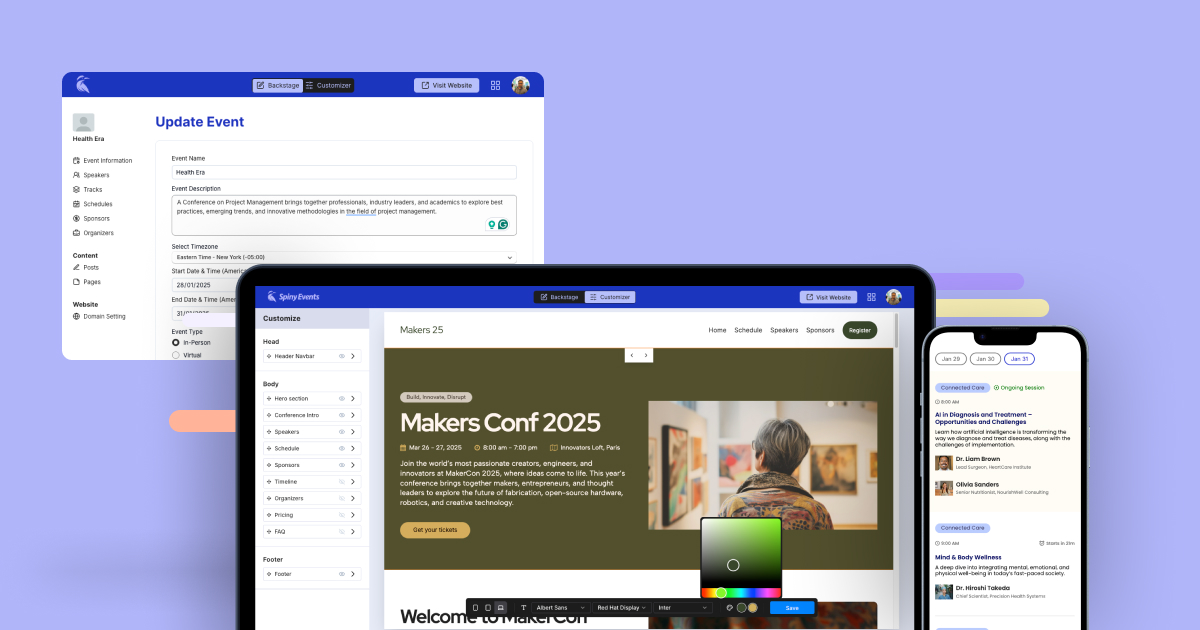
In the past, creating a professional event website required extensive coding knowledge, hiring expensive developers, and waiting months for completion. But in the fast-moving world of events, these delays can be devastating to your success. The faster you launch your event website, the faster you can open a call for speakers, sell tickets, and approach sponsors. Today, you can launch a professional event website with no coding experience and have it ready in under 2 hours with all the features you need.
Many platforms in the market promise sleek designs or generic features, but when it comes to handling the unique needs of an event, such as ticketing, multi-day and multi-track schedules, speakers’ media management, real-time updates, and timezone handling, they often fall short. Eventually, these solutions don’t just waste your time; they can also frustrate attendees and make your event look amateur.
In this guide, we will walk you through how to create a fully functional, professional website for your event or conference without writing a single line of code. But before we dive into the “how,” it’s important to understand what makes an event website different from a normal website and the key factors you need to consider before you start building.
Factors to consider while making conference websites
In our experience organizing and supporting hundreds of conferences and events, we have seen many organizers make one or more of the following mistakes when building their event websites:
1. Real-Time updates without developer dependency
Schedule changes are inevitable in event management. Last-minute speaker cancellations, room reshuffling, and timing adjustments happen constantly. Your website must allow instant updates through a user-friendly admin panel without requiring technical expertise or developer intervention. When changes occur, attendees need to see updates immediately on their screens, not hours or days later.
2. Desktop and Mobile friendly
While websites typically receive around 80% desktop traffic before events, this flips dramatically during the event itself. We’ve observed that 95% of attendees access event websites on mobile devices when checking schedules, finding session details, and navigating between tracks. Most website builders prioritize desktop design, creating complicated calendar-like schedule views that work poorly on smaller screens. This leaves attendees straining to find information when they need it most.
3. Event-Specific features out of the box
Every event needs dynamic scheduling, speaker profile management, sponsor showcases, and real-time updates features. While generic website builders like WordPress, Wix, or Webflow are designed for small businesses, blogs, or e-commerce stores, they require additional customization to adapt them for events, which require extensive coding, plugins, and significant time investment.
That’s why we recommend using Spiny Events, a website builder designed exclusively for events and conferences. With Spiny Events, you can build a complete event website for just $129 per event. It’s not just a website builder; you get integrated schedule management, speaker profiles, sponsor showcases, and ticketing capabilities all in one platform.
Below is the step-by-step walkthrough for creating your event website using Spiny Events; no coding and no complicated setups.
Step-by-Step Guide:
Building your event website with Spiny Events
Following this tutorial, you will learn how to create a complete event website on your own. To make things easier, we’ve included a YouTube video for every step of the process.
Step 1: Account Creation
- Go to SpinyEvents.com and click “Sign In” or “Start a Free Trial.”
- You will land on app.spinyevents.com, where you can create an account or sign in with your email and password. (No payment is required to create an account.)
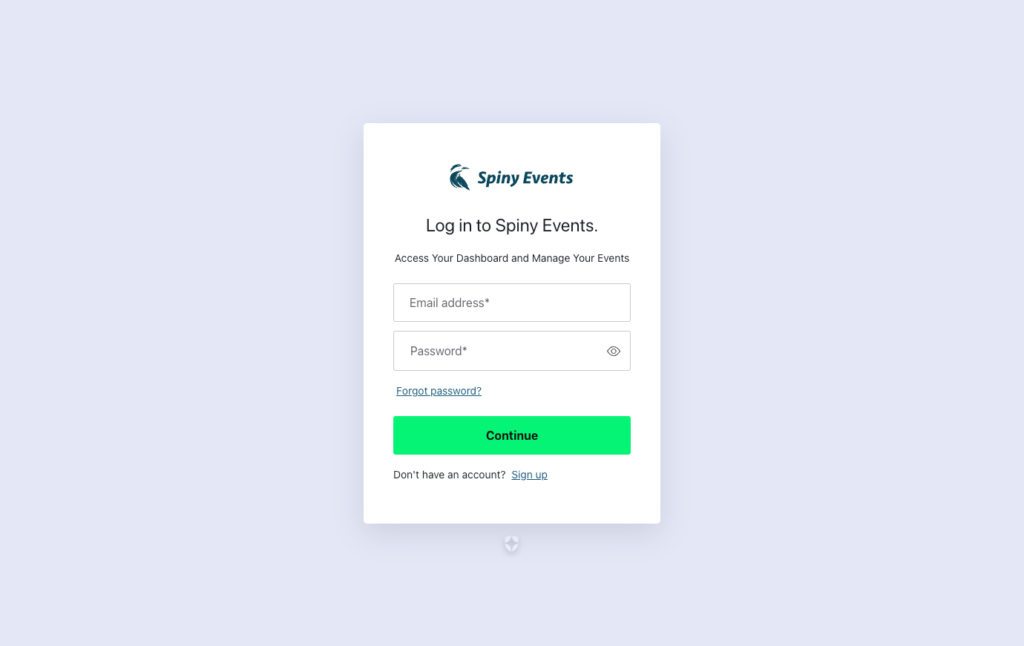
Step 2: Event Setup Dashboard
- Once signed in, create your first event by filling in the event information.
- Add your event title, date, venue, timezone, and define your site URL which you can use to preview your site, also you can connect your own domain later.
- Then click “create an event”.
Step 3: Backstage Management
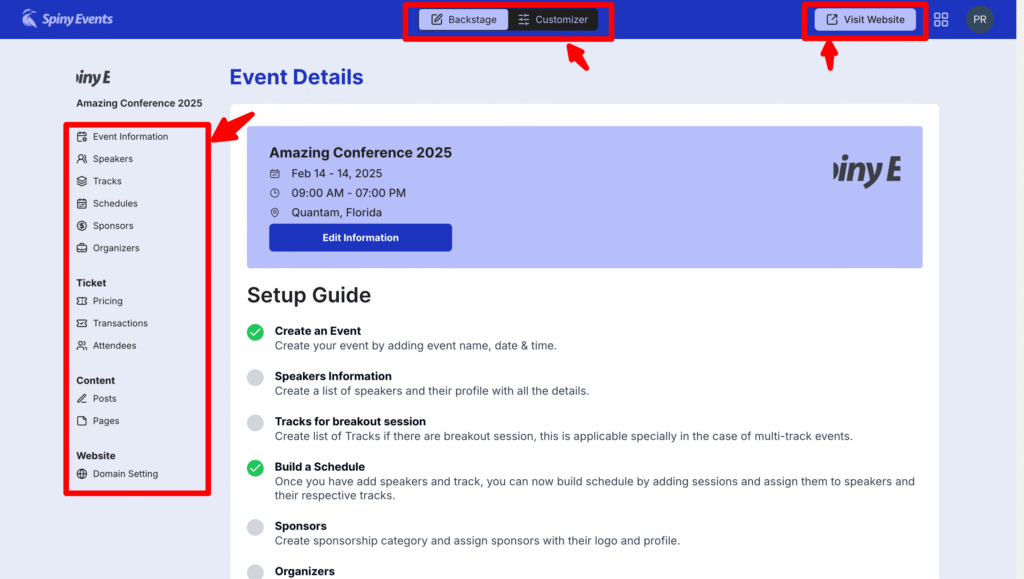
After creating your event, you will be taken to the Backstage, the content management area where you can update, edit, and manage all aspects of your event.
- On the left, you’ll see navigation links: Event Information, Speakers, Tracks, Sponsors, Organizers, Posts, Pages, and Domain Settings.
- Use the “Visit Website” link to view your live event website.
- In the navigation bar, you’ll see a toggle switch [Backstage | Customizer] that takes you to the visual customization area.
Step 4: Visual Customization
The Customizer controls the visual appearance and static content of your event website, including hero text, sections, titles, navigation, footer, colors, fonts, and layouts. The Customizer opens with a live preview of your website.
- On the right-hand side, you’ll see editable text and elements.
- Click any text to edit it—changes appear instantly on the website preview.
- At the bottom, you’ll find a toolbar for customizing the appearance to match your brand.
- Use the Design Shuffler tool to get variations for each section and find the best fit for your event.
Step 5: Speaker Profile Creation
Adding speakers is essential before setting up schedules and sessions.
- In Backstage, click “Speakers” in the left panel, then click “ADD Speaker” in the top-right corner.
- Fill in speaker details, including name, bio, company name, and social media links.
- Each speaker gets a dedicated profile page featuring their bio, topics, and social media links.
Step 6: Track Creation
Creating tracks is straightforward, but it’s essential to understand what tracks represent. In the case of an event, we are using tracks to assign breakout sessions if you have multiple tracks conference in different halls. This is not a place to assign a conference theme or session tag; you can do it later while creating a schedule.
- In the left panel, click “Tracks,” then “Add Tracks.”
- Add track name (e.g., Hall 1, Hall 2, Room 1, Room 2), track details (e.g., directions to the hall or room), and upload a photo of the track location.
Step 7: Event Schedule Management
Spiny Events provides an intuitive schedule builder supporting single-day single-track events as well as multi-day multi-track events. Important: Before setting up the schedule, review your event details. Check the timezone to ensure it reflects your event’s actual location the schedule builder follows the timezone you select here. Confirm event dates are accurate, as the schedule builder uses the start date as a reference.
- From the left panel, click “Schedules,” then “Add a Schedule.”
- Enter session title, description, select track and speakers (you can assign multiple speakers)
- Set start/end dates and times. The built-in timezone feature automatically adjusts session times for participants joining from different regions.
- define session type (Keynote Speech, Panel Discussion)
- Add YouTube URL for post-event recorded sessions.
- Once done, click “Submit”
Step 8: Sponsor Management
Sponsors require a professional presentation, so we have designed a streamlined two-step sponsorship management system.
- First, create sponsor categories. Navigate to “Sponsors” in the left panel and click “Add Category.” Create categories like Title Sponsor, Platinum Sponsors, Gold Sponsors, or Silver Sponsors. You can drag and drop to reorganize categories as needed.
- Next, add individual sponsors. Open any sponsor category and click “Add Sponsor.” Enter sponsor details, including name, description, logo, and website URL. You can reorganize sponsors within categories using drag-and-drop functionality.
Step 9: Custom Domain Connection
To connect your custom domain, go to Dashboard and click “Domain Settings” in the sidebar.
- Add your domain by typing it in and clicking “Add Domain.” Set it as your primary domain by clicking the star icon.
- In Domain Configuration Details, you’ll find two options: – For main domains (yourevent.com): use the provided A record – For subdomains (2025.yourevent.com): use the CNAME record
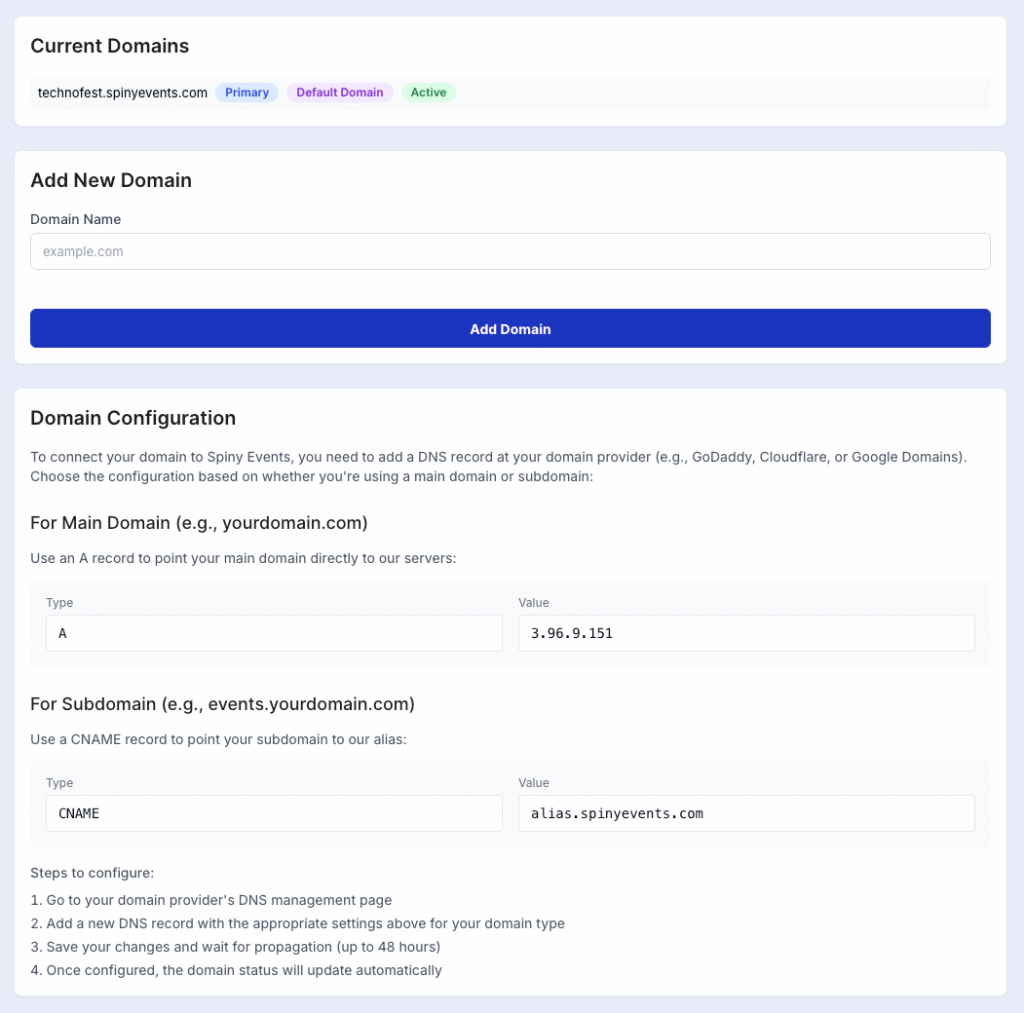
For configuring in your domain provider.
- Log in to your domain provider (GoDaddy, Namecheap, Google Domains) and access DNS Settings.
- For main domains, create an A record with IP address 3.96.9.151.
- For subdomains, create a CNAME record pointing to alias.spinyevents.com
- DNS changes may take a few hours to take effect.
Step 10: Create Pages and Posts
Pages are an essential part of your event website, allowing you to create static content like About, Privacy Policy, Code of Conduct, Accommodation, Travelers’ Info, or any custom pages you need.
- From the left panel, click on Pages to open the Manage Pages section.
- Click Add New Page to start creating a new page.
- You’ll be redirected to the page editor, where you can enter the following details: Page Title, Content, and then click Publish.
Posts are essential for sharing updates, announcements, and content on your event website. With Spiny Events, you can easily create and publish posts to keep your audience informed.
- Click on Add a Post to start creating a post.
- You will be redirected to the post editor, where you can enter the following details: Post Title, Content, Featured Image, Date & Time
- Once done, click Publish.
This entire process should take you less than an hour. However, when it comes to conferences, gathering speaker profiles, session briefs, and sponsor logos can often be challenging. If you already have these assets ready, creating the full website shouldn’t take more than a day.
Get started for Free
Don’t worry — you can always return to your dashboard later to upload speaker profiles, sponsor logos, and update the schedule, as we understand that events often involve these kinds of delays.
You can try creating your first event with Spiny Events.
Three phases of the event website
Every successful event website must support three distinct phases, each with different requirements and objectives.
- Pre-Event Phase: Your website drives excitement and registrations through countdown timers, speaker announcements, and sponsor showcases. Rather than listing all speakers immediately, gradually reveal them to build anticipation and keep people returning to your site. Include dynamic event timelines showing key dates like early bird registration deadlines and abstract submission periods. Provide sponsors with professional visibility through customizable tiers and dedicated profiles.
- During-Event Phase: Your website becomes the central communication hub for attendees. Mobile optimization becomes crucial as 95% of attendees access schedules on their phones. Real-time schedule updates must be implementable instantly when speakers cancel or rooms change. Communication delays create confusion and frustration. Time zone handling serves virtual or hybrid events with global participants, automatically adjusting session times for different regions. Live session indicators help attendees track current and upcoming sessions.
- Post-Event Phase: Transform your website into a resource hub by providing easy access to speaker slides, PDFs, and supplementary materials. Embed recorded sessions within speaker or session profiles for continued learning, serving attendees who want to rewatch content, those who missed sessions, and future attendees considering registration. Use the platform to build momentum toward next year’s event through early announcements and save-the-date information.
Generic website builders don’t understand this three-phase lifecycle or provide built-in solutions for these transitions. This is why purpose-built event platforms like Spiny Events deliver superior results for event organizers.
Conclusion
Website creation for events and conferences used to be difficult and expensive, now it’s easy and affordable. With tools like Spiny Events, which is built exclusively for events, and creating professional conference websites has become a simple, no-code solution that you can implement in under 2 hours.
Instead of spending $10,000+ on custom development or struggling with generic website builders that weren’t designed for events, you can focus on what truly matters: delivering an awesome experience for your attendees. At $129 per event with no hidden fees, Spiny Events provides everything you need to promote, manage, and archive your conference all in one integrated platform.
Your event deserves a website that understands the unique challenges of conference management. Stop settling for generic solutions and start building with a platform designed specifically for your success.
Ready to take your event’s online presence to the next level? Start your free trial with Spiny Events and build a professional conference website in under 2 hours today.
Get started for Free

Leave a Reply